Dashboard reference
The dashboard is where you create tunnels, copy connection details, govern and secure traffic, and inspect MCP calls. This page is a map of the UI; each control links to the guide that explains the behavior in depth.
Sign in
Section titled “Sign in”Create an account with an email and password, or continue with Google or GitHub. Your session is kept until you log out; Log out everywhere revokes every active session. See Account & sign-in for SSO linking, email verification, the account slug, and the sessions list.
Tunnels
Section titled “Tunnels”The tunnels list shows one row per tunnel:
| Column | What it shows |
|---|---|
| Name | The friendly name you gave the tunnel. |
| Public URL | https://<subdomain>--<account-slug>.mcppipe.dev — the per-account host. The MCP endpoint is that host plus /mcp. |
| Transport | streamable http or stdio bridge. |
| Status | A live dot plus N / max sessions when online (current agent sessions vs. your plan cap), or offline. |
Use the filter box to find a tunnel quickly. Each row has an actions menu (Open, Copy config snippet, Clone tunnel), and clicking the row opens the tunnel.
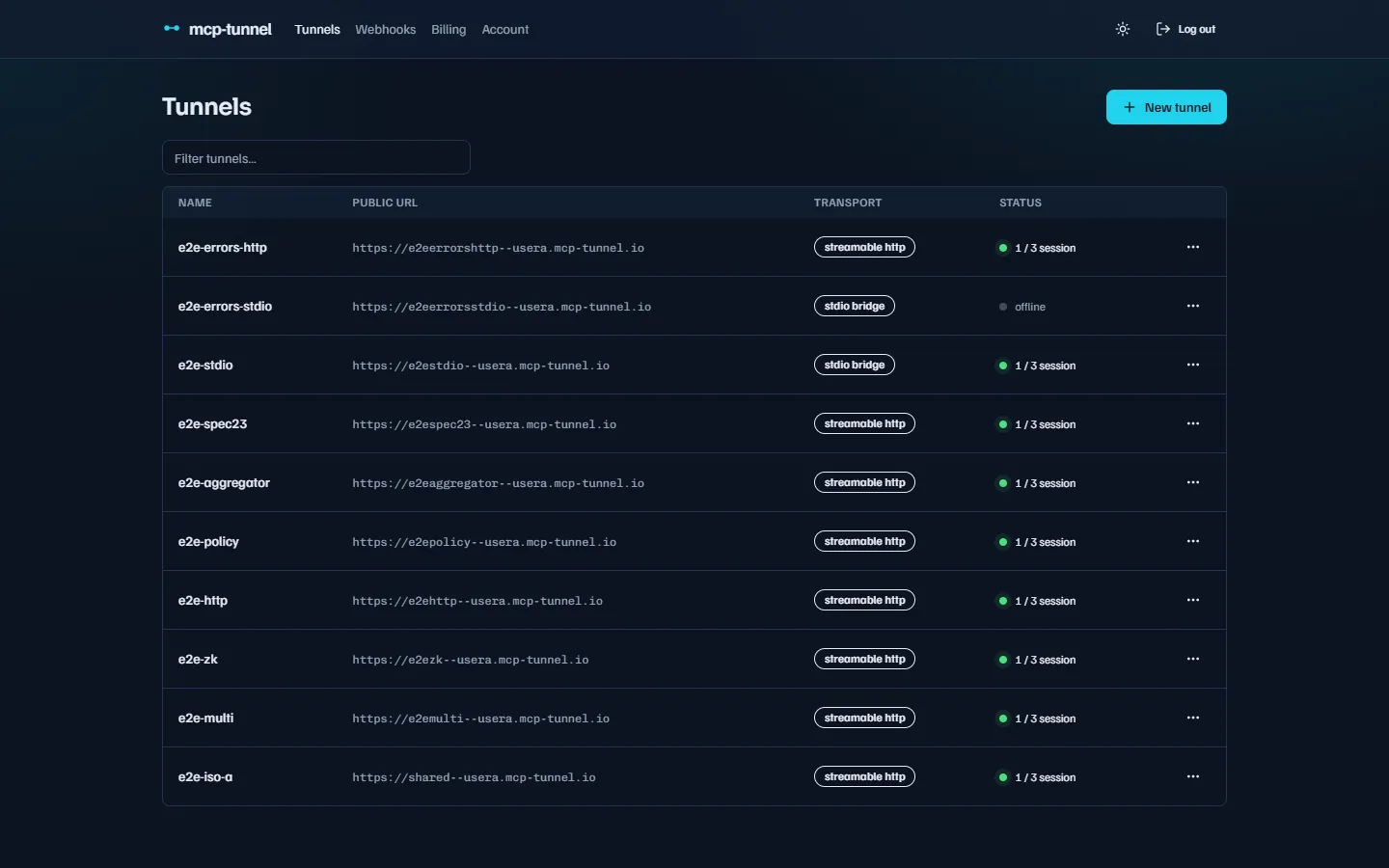 The tunnels list shows each tunnel’s public URL, transport, and how many agent sessions are live against the plan cap.
The session count comes from running multiple concurrent agents on one tunnel — see Reliability for the per-plan caps (Free 3, Pro 10, Scale 25).
Create a tunnel
Section titled “Create a tunnel”New tunnel opens a dialog. Pick a Name, an optional Subdomain (3–32 lowercase letters, digits and hyphens; leave it blank for a random one, scoped to your account so it only has to differ from your other tunnels), and a Transport (Streamable HTTP or stdio bridge).
On creation the dialog reveals — once — the tunnel’s CLI key (prefixed
mtk_), a ready-to-run mcppipe up command, and an MCP client config
snippet. Copy the key immediately; only its hash is stored, so it cannot be
shown again. If you lose it, rotate the key (below).
See the Quickstart for the end-to-end flow.
Clone a tunnel
Section titled “Clone a tunnel”Clone tunnel (from the row menu or the tunnel header) copies an existing tunnel’s settings into a brand-new tunnel with a fresh CLI key. The clone inherits the source’s tool policy, rate limits, IP allowlist, and auth mode. It does not copy the custom domain, TLS certificate, or the discoverable (Server Card) flag — pick a fresh subdomain. The new CLI key is shown once, same as on create.
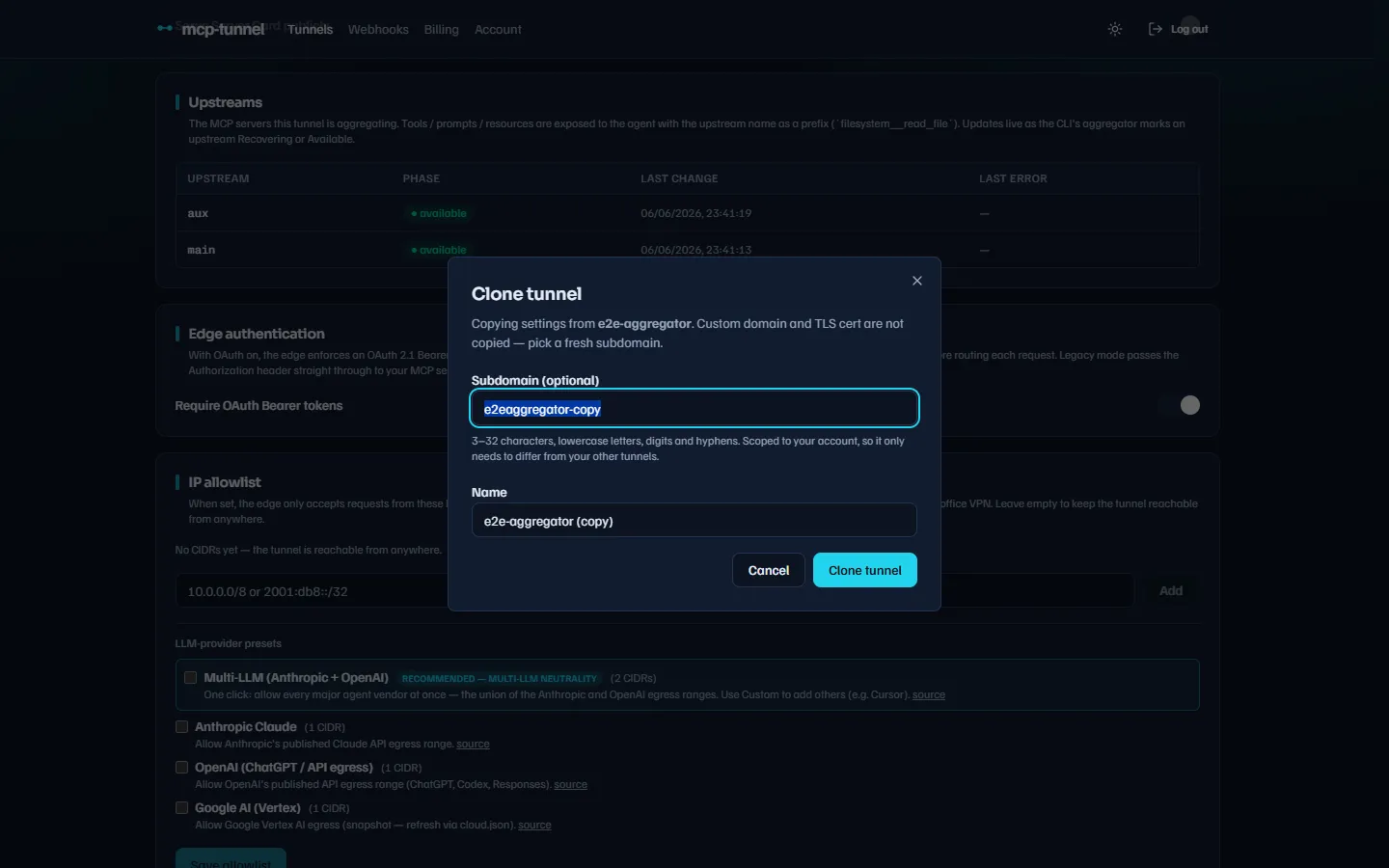 Cloning copies policy, rate limits, IP allowlist, and auth mode into a new tunnel — but not the custom domain or cert.
Recently deleted
Section titled “Recently deleted”Deleting a tunnel is a soft delete: it disconnects any attached CLI and enters a 7-day recovery window. Soft-deleted tunnels appear under Recently deleted below the list, where one click restores them. After 7 days the retention sweep purges them for good.
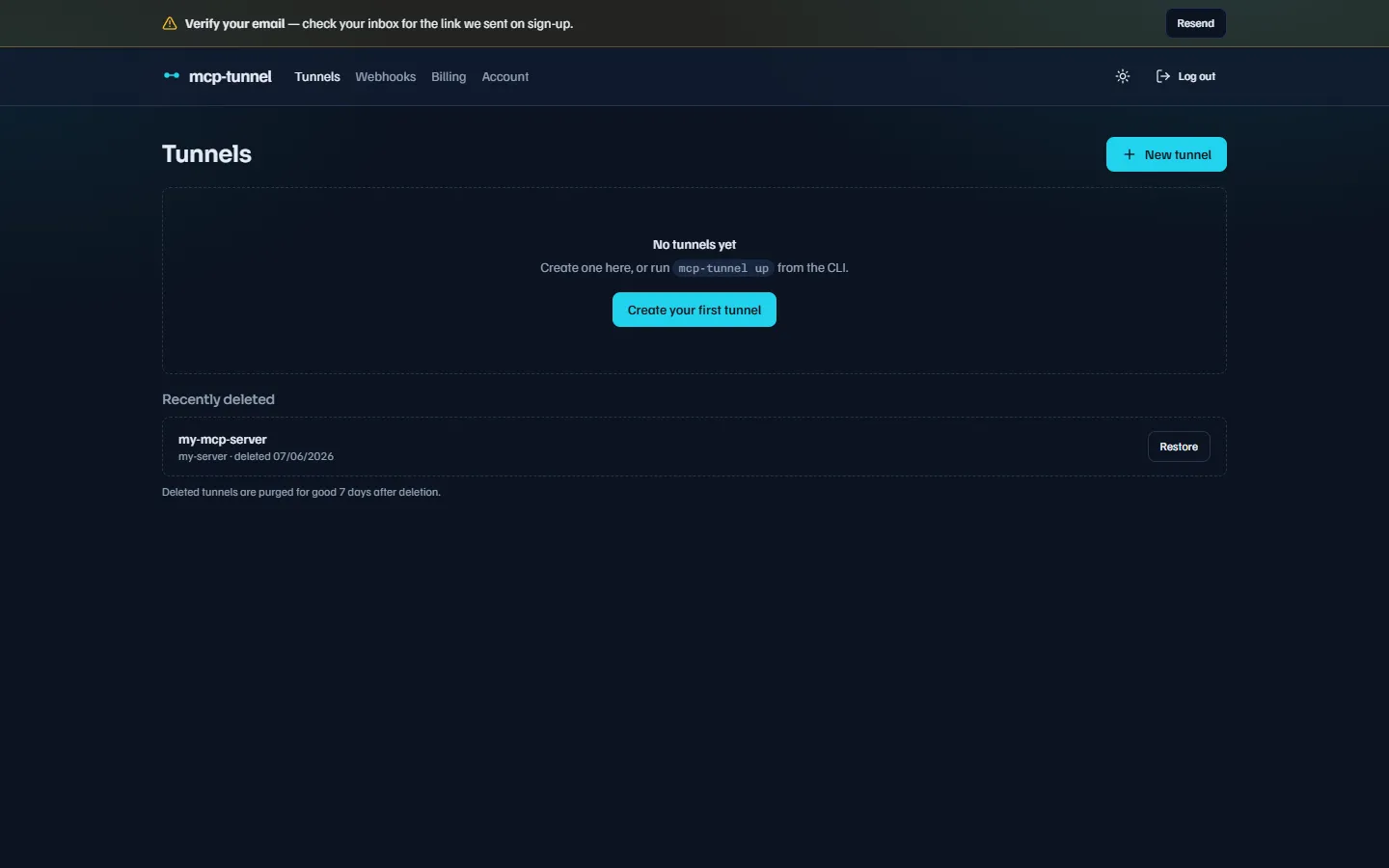 Soft-deleted tunnels stay restorable for 7 days before they are purged.
Tunnel detail
Section titled “Tunnel detail”Opening a tunnel shows a header (name, online/offline badge, transport badge, public URL, Copy config, Clone tunnel) and four tabs: Live, Inspector, Tools, and Settings.
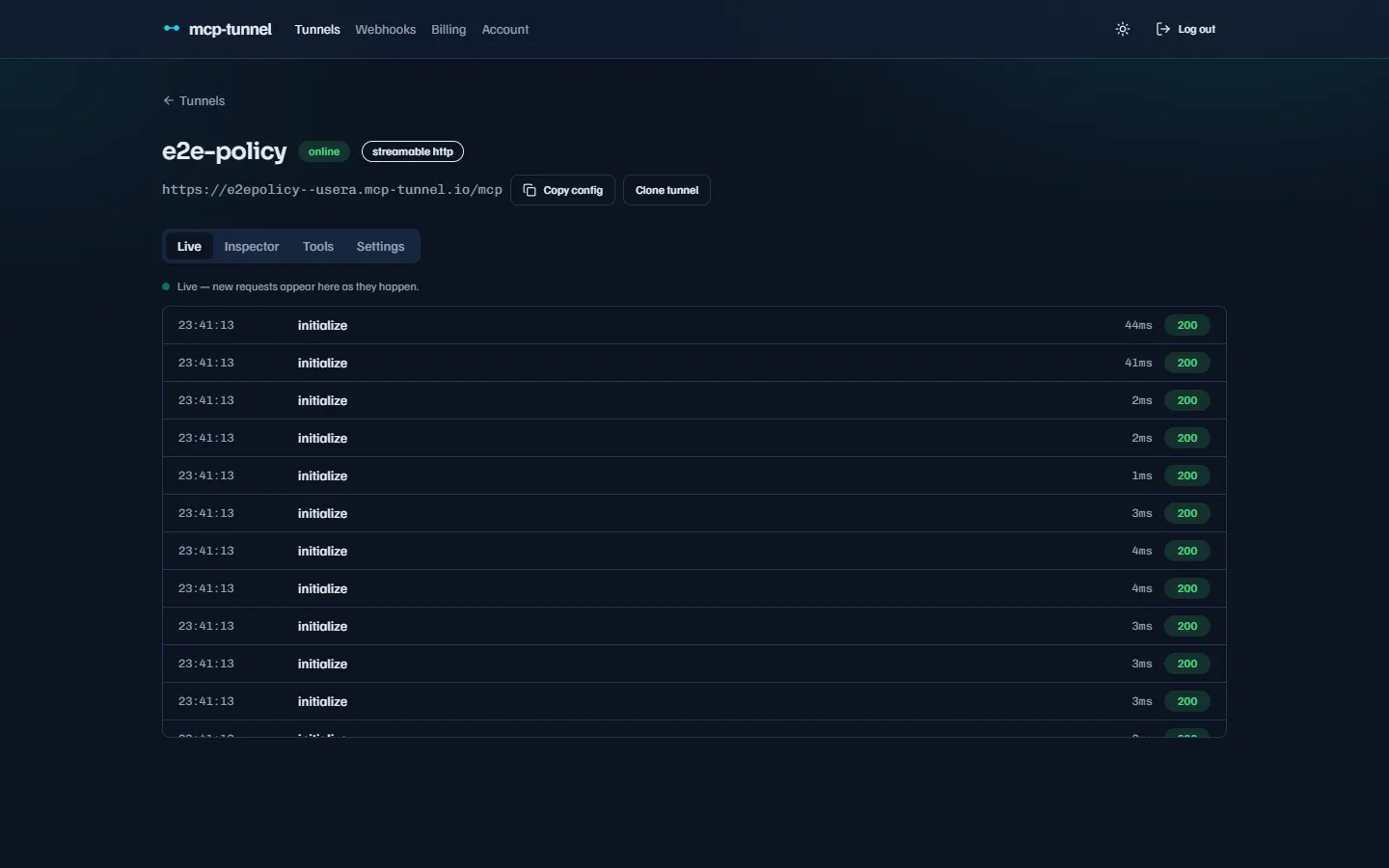 A tunnel exposes four tabs: Live, Inspector, Tools, and Settings.
A real-time stream of MCP traffic — each row is one JSON-RPC call (method, tool name, latency, status), appearing as it happens and seeded with recent history so the list is never empty. Click a row to open the detail drawer.
Inspector
Section titled “Inspector”The persisted traffic history, browsable after the fact, with filters and a
detail drawer showing the full request/response, latency, status, and session.
The Inspector can also replay a tools/call with edited arguments. See
Live traffic & Inspector.
Per-tool call stats (count, p95 latency, error rate) plus pin approval and rug-pull status. See Tool governance.
Settings
Section titled “Settings”Settings is organized into the sections below. Most apply only when the tunnel captures traffic — turning on zero-knowledge capture mode makes the policy/redaction/rate-limit sections inert because mcppipe then only routes bytes.
| Section | What it controls | Guide |
|---|---|---|
| Tunnel details | Rename the tunnel and change its subdomain (updates the public URL). | — |
| Capture mode (privacy) | Switch between normal capture and zero-knowledge (bytes-only, billed by bandwidth). | Privacy |
| Privacy | Redact request payloads — store metadata only, never the body. | Privacy |
| Discovery (Server Card) | Toggle whether the tunnel publishes /.well-known/mcp/server-card.json. | Server Card |
| Upstreams | Manage the upstreams behind an aggregator tunnel. | Aggregation |
| Edge authentication | Auth mode: legacy or OAuth 2.1 Bearer. | Authentication |
| IP allowlist | CIDR allowlist with one-click vendor presets (Multi-LLM / Anthropic / OpenAI / Google). | Access control |
| Tool policy | Allow/deny which tools tools/call may reach. | Governance |
| Rate limits | Per-method and per-tool sliding-window caps. | Governance |
| Redaction rules | Mask or drop specific JSON-pointer fields per tool in recorded payloads. | Privacy |
| Rug-pull protection | Pin a tool baseline; warn or block on drift. | Governance |
| Custom domain | Point your own FQDN (CNAME + DNS-TXT verification + ACME/uploaded TLS), and optionally disable the default subdomain. | Custom domains |
| Service Tokens | Mint, list, and revoke long-lived inbound HTTP tokens for headless agents. | Authentication |
| CLI key | Rotate the mtk_… CLI credential; the current key stops working immediately and the new one is shown once. | — |
| Danger zone | Delete the tunnel (soft delete with a confirmation step; recoverable for 7 days). | — |
Billing
Section titled “Billing”The Billing page shows your current plan, this month’s usage meters, and plan cards with a monthly/annual toggle. Upgrading opens a hosted Paddle checkout; Manage subscription opens the customer portal. See Billing & plans for prices, quotas, and the concurrent-session caps.
A dark-mode toggle is in the dashboard header; the choice is remembered.