Custom domains & TLS
Every tunnel is already reachable on its per-account host
https://<subdomain>--<account-slug>.<zone>/mcp (for example
https://notes--acme.mcppipe.dev/mcp). A custom domain lets you serve the
same tunnel on a hostname you own — https://mcp.example.com/mcp — instead of,
or in addition to, that default host. The endpoint path stays /mcp and the
transport stays Streamable HTTP either way.
Custom domains are configured per tunnel under Settings → Custom domain (one of the four tabs: Live, Inspector, Tools, Settings).
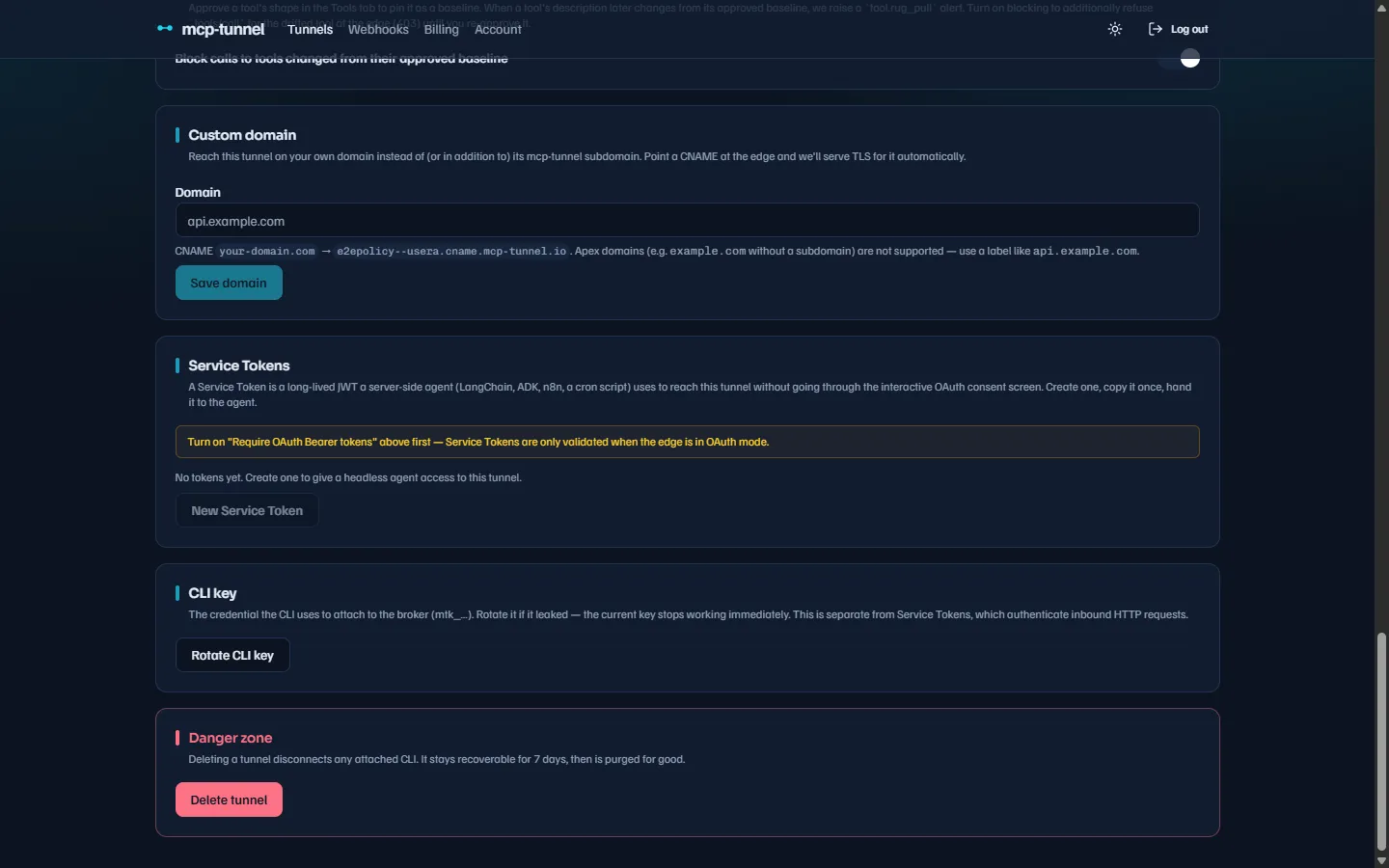 The Custom domain section: enter your FQDN, point the CNAME, then pick a TLS source.
1. Point a CNAME at mcppipe
Section titled “1. Point a CNAME at mcppipe”Enter the hostname you want to use (for example api.example.com) in the
Domain field and save. The dashboard shows the exact CNAME target to create
at your DNS provider:
CNAME api.example.com → <subdomain>--<slug>.cname.mcppipe.devThe target is your tunnel’s per-account label under the cname. zone — for the
example above, notes--acme.cname.mcppipe.dev. The dashboard renders the
exact value for your tunnel; copy it verbatim.
A few rules the validator enforces on the domain you enter:
- It must be a fully qualified name with at least two labels. Apex domains are
rejected (e.g.
example.comwith no subdomain) — RFC 1034 forbids a CNAME co-existing with a zone apex’sSOA/NSrecords, so use a label likeapi.example.comormcp.example.com. - Labels are 1–63 characters, lowercase letters/digits/hyphens only, no leading or trailing hyphen, no underscore.
- No bare IP, no port, no IPv6 literal.
- The domain must not fall under the platform’s public zone — that range is
reserved for the default
---encoded subdomains.
A rejected value returns 400 Bad Request with the specific reason (for
example custom_domain must have at least two labels).
2. Verify domain ownership (DNS TXT)
Section titled “2. Verify domain ownership (DNS TXT)”Before mcppipe will route your domain — or request a certificate for it — you must prove you own it. Setting or changing the domain resets verification, so mcppipe keeps serving only the default host until the proof completes. This closes the unauthorized-issuance vector where claiming someone else’s domain would otherwise make the platform ask Let’s Encrypt for their certificate.
Publish a TXT record with the challenge token the platform issues for your domain:
Name: _mcppipe-challenge.api.example.comType: TXTValue: <challenge token>Then complete the proof:
curl -X POST https://app.mcppipe.dev/api/tunnels/<tunnel-id>/verify-domain \ -H "Authorization: Bearer <session token>"The response carries the record you still need to publish and a verified flag:
{ "domain": "api.example.com", "verified": false, "status": "pending", "record_name": "_mcppipe-challenge.api.example.com", "record_type": "TXT", "record_value": "<challenge token>"}Once the TXT record resolves, the same call returns verified: true,
status: "verified", and mcppipe starts routing the FQDN. In ACME mode it also
pre-warms certificate issuance at that moment (see below).
3. Choose a TLS source
Section titled “3. Choose a TLS source”With a verified domain set, pick how the certificate is provisioned under TLS source:
- Auto (ACME) — mcppipe requests and renews a Let’s Encrypt certificate via
the HTTP-01 challenge. With a verified domain in
acmemode, apendingcertificate row is created automatically; the service picks it up on its next poll and the typical flow is “set the CNAME and domain → wait ~30 s → Active”, with renewals handled ahead of expiry. No action needed. - Upload PEM — bring your own certificate. mcppipe serves it verbatim and does not renew it for you — you must re-upload before it expires.
To upload, paste the certificate chain (leaf first) and the private key. The
upload is validated server-side and rejected with 400 if it is not usable:
- The certificate must be a valid X.509 cert whose SAN list includes your custom domain. CN-only certificates are not accepted (modern browsers refuse them).
- The certificate must not already be expired.
- The private key must parse as PKCS#8, EC, or RSA.
On success the certificate becomes active immediately and mcppipe picks it up
on its next refresh tick.
4. Check certificate status
Section titled “4. Check certificate status”The Custom domain section shows a live status badge sourced from
GET /api/tunnels/<id>/certificate. Status is one of pending, active,
renewing, or failed, alongside the source (Let’s Encrypt or Uploaded) and
the expiry date (with a remaining-days countdown; the badge turns amber under
14 days).
If issuance fails (for example the CNAME has not propagated yet so the HTTP-01
challenge can’t reach mcppipe), the badge shows failed with the underlying
error. Fix the cause, then:
- In ACME mode, use Force re-issue to drop the row so a fresh issuance starts.
- In Upload PEM mode, use Remove certificate and upload a corrected PEM.
5. Disable the default subdomain (optional)
Section titled “5. Disable the default subdomain (optional)”By default a tunnel with a custom domain is reachable on both the custom
domain and its default <subdomain>--<slug>.<zone> host. If you want the custom
domain to be the only entry point, set Default subdomain → Disable.
When disabled, requests to the default host return 404 (no tunnel found for host …) while the custom domain keeps serving. The toggle is only available
once a custom domain is set — clearing the custom domain forces the default path
back on, so a tunnel can never be left with no reachable host.
Gotchas
Section titled “Gotchas”- Verify before it works. An unverified custom domain is not routed and gets
no certificate. If clients see a connection error on your domain, confirm the
_mcppipe-challengeTXT record resolves and re-runverify-domain. - ACME needs the CNAME live. The HTTP-01 challenge is served by mcppipe, so the CNAME must already resolve before issuance can succeed.
- Uploaded certs don’t auto-renew. Track the expiry shown on the badge and re-upload in time.
- Clone doesn’t copy domains. Cloning a tunnel copies its settings but not the custom domain or certificate — those are unique to one FQDN.
- Changing the domain resets everything. A new or changed domain clears verification and any in-flight certificate of the old source.
Related
Section titled “Related”- IP allowlist & access control — lock a domain down to known client networks.
- Authentication: OAuth & Service Tokens — the OAuth audience is bound to the host clients dial.
- Dashboard reference — all tunnel Settings sections.
- Troubleshooting — TXT-not-verified and cert-pending fixes.